How to use this page
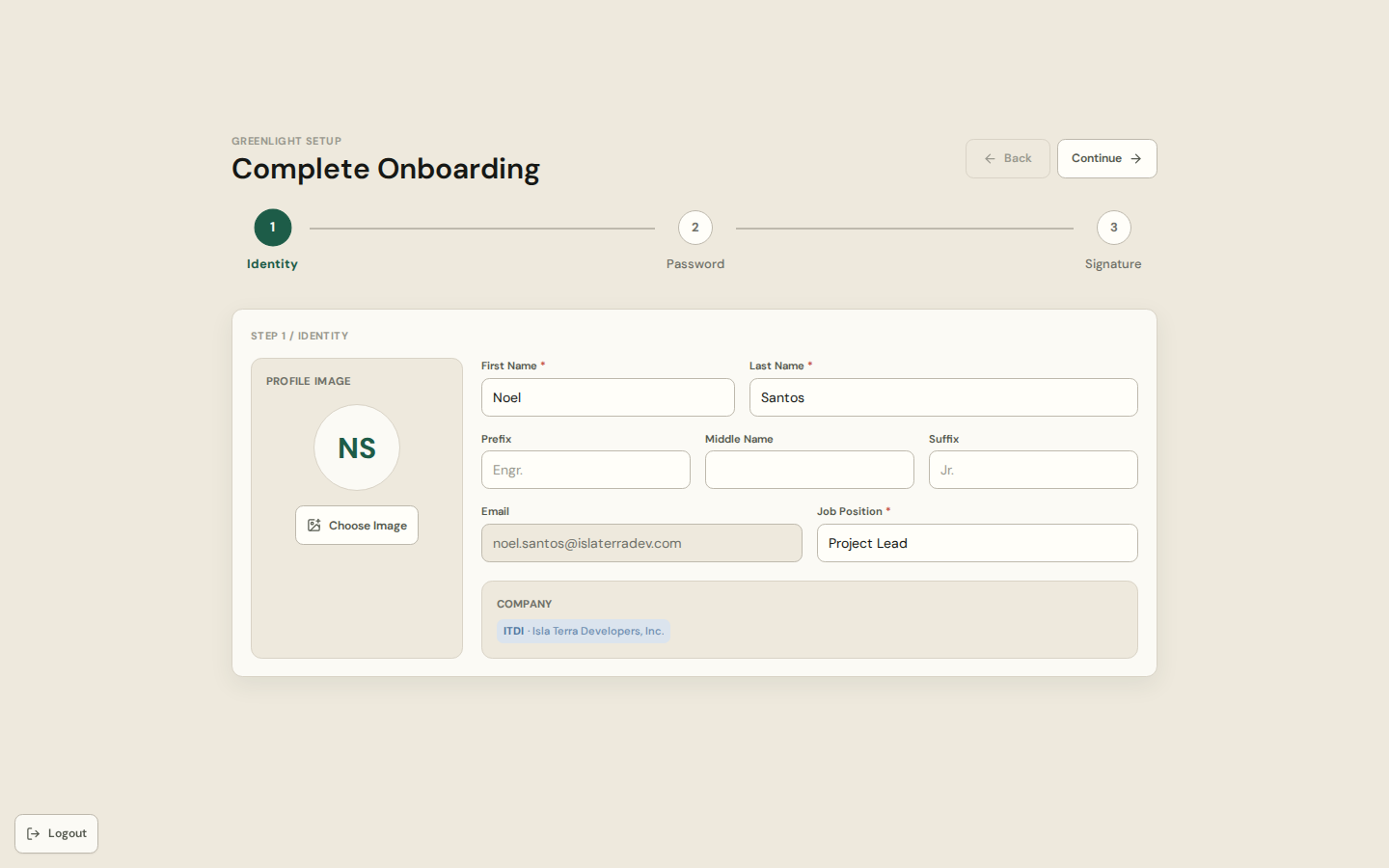
- 1 Open the link in your invitation email. It signs you in on its own and opens Complete Onboarding.
- 2 Step 1 Identity: confirm your name, prefix or suffix, and job position.
- 3 Step 2 Password: choose the password you will use at /login (only asked when the account has none yet).
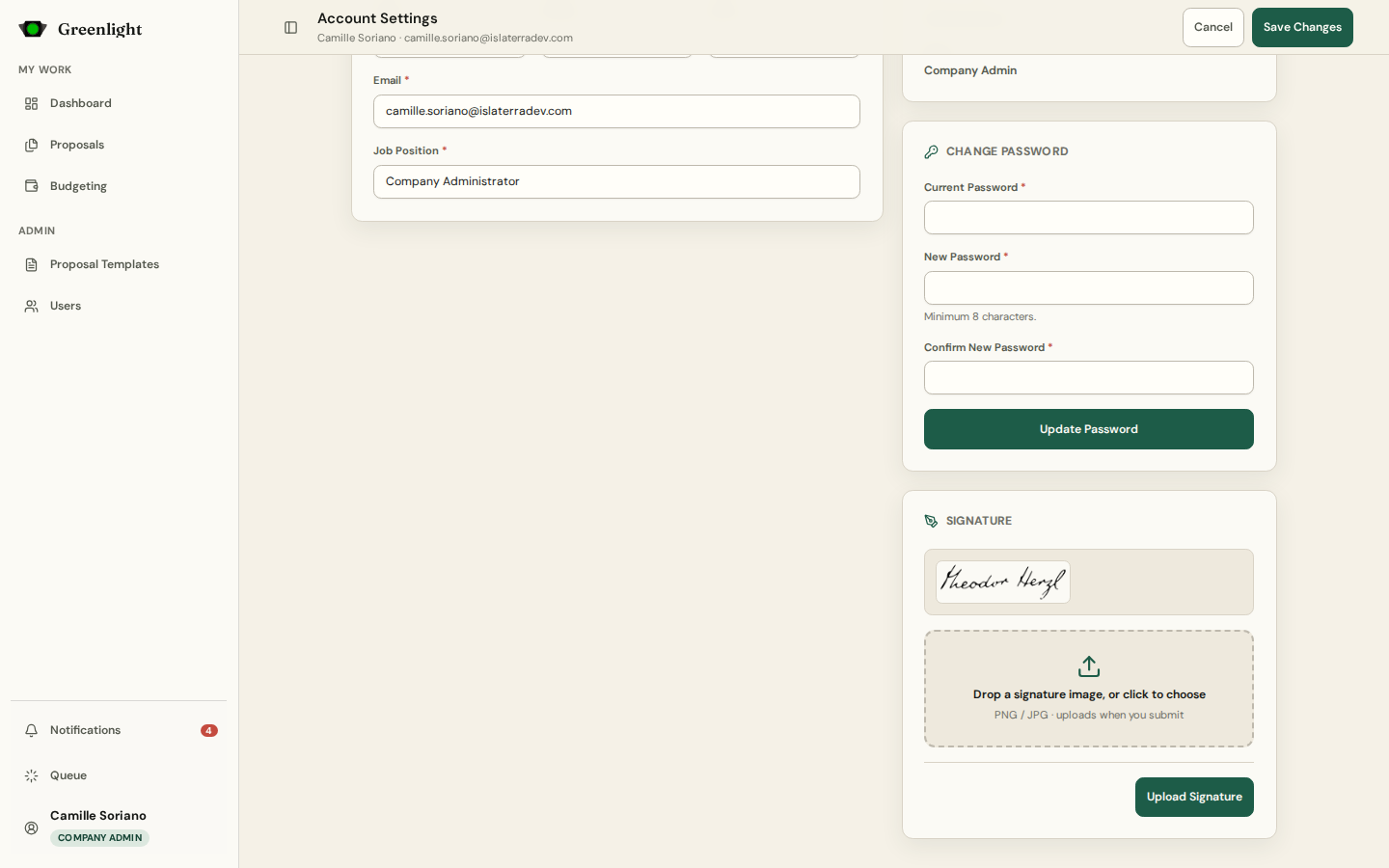
- 4 Step 3 Signature: upload a clean image of your signature — it is stamped onto the PDFs you approve.
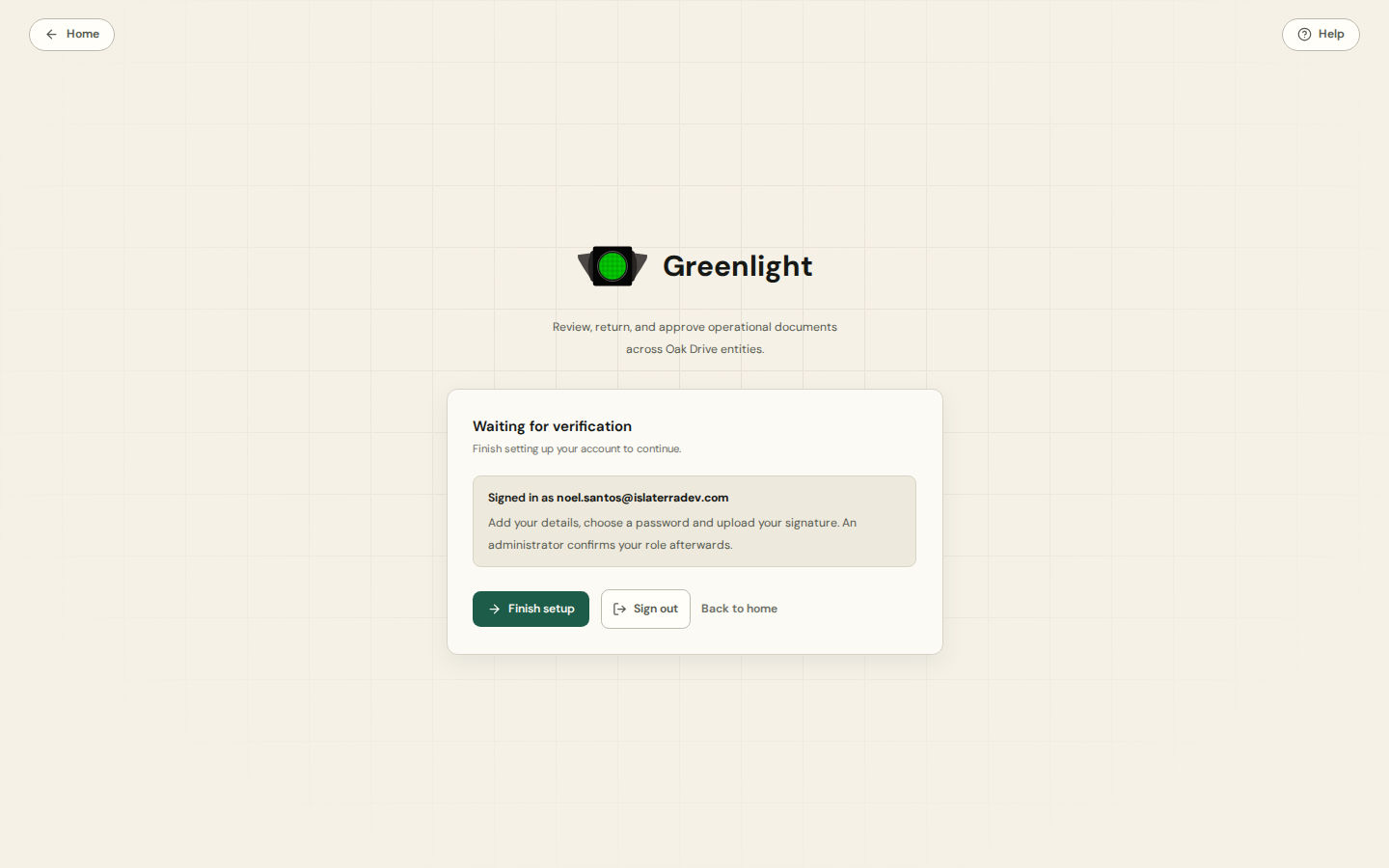
- 5 You land on Account setup. It says an administrator will assign your role and department; you get an email when that is done.
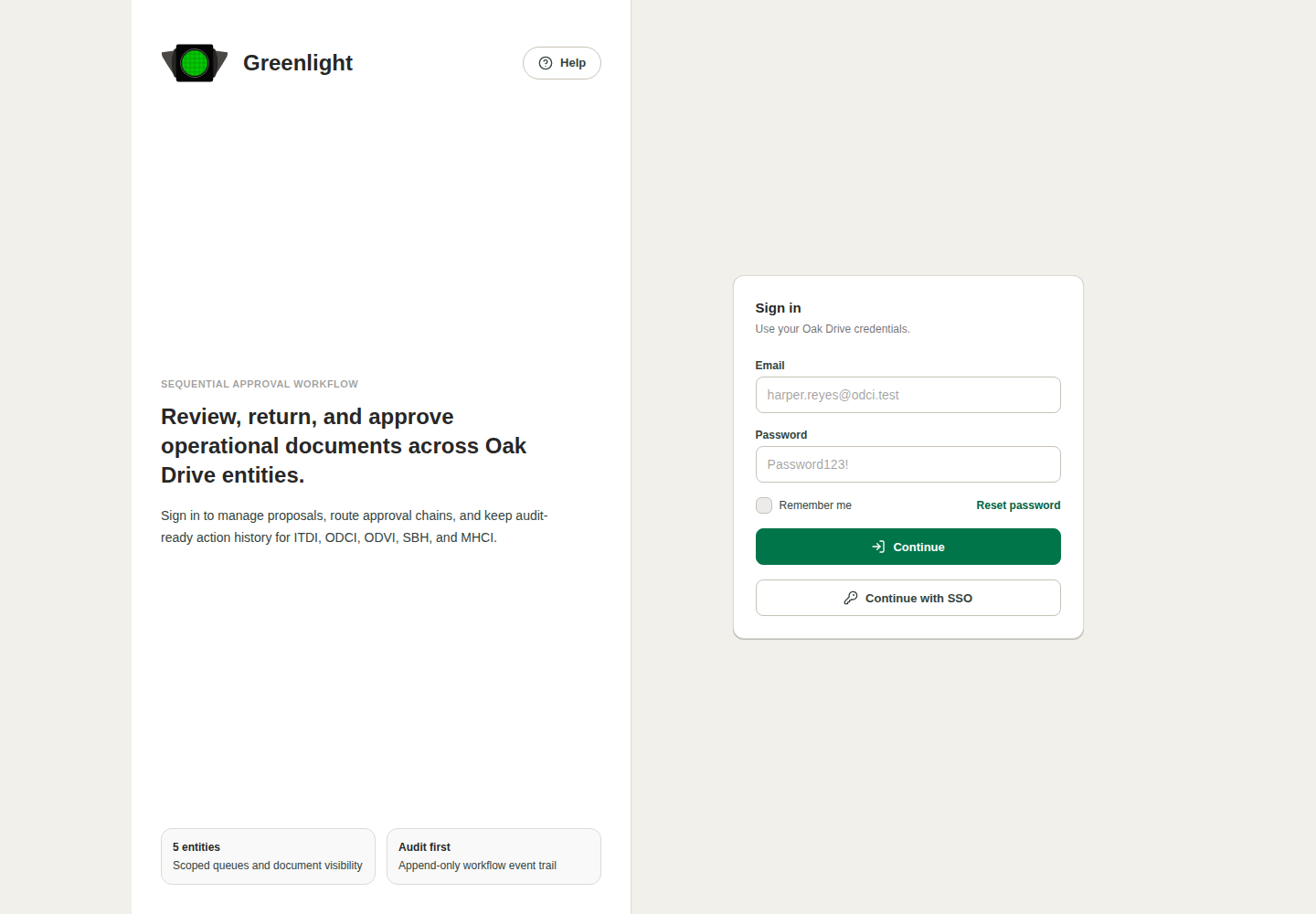
- 6 From then on sign in at /login with email and password, with a one-time code sent to your email, or with the Oak Drive SSO account — whichever the administrator has enabled.
While you wait
- The sidebar shows only Account setup and Account details until an administrator verifies you.
- You can already fix your details or replace the signature from Account details.
- If the link says the invitation expired, ask an administrator to resend it from Admin › Users.
Signing in later
- Reset password on the login page emails a recovery link when you cannot sign in.
- Notification emails carry a link that signs you in and opens the paper directly; it expires after the validity an administrator set.
- A password an administrator reset must be changed on your next sign-in.
Screenshots
Page states