In short
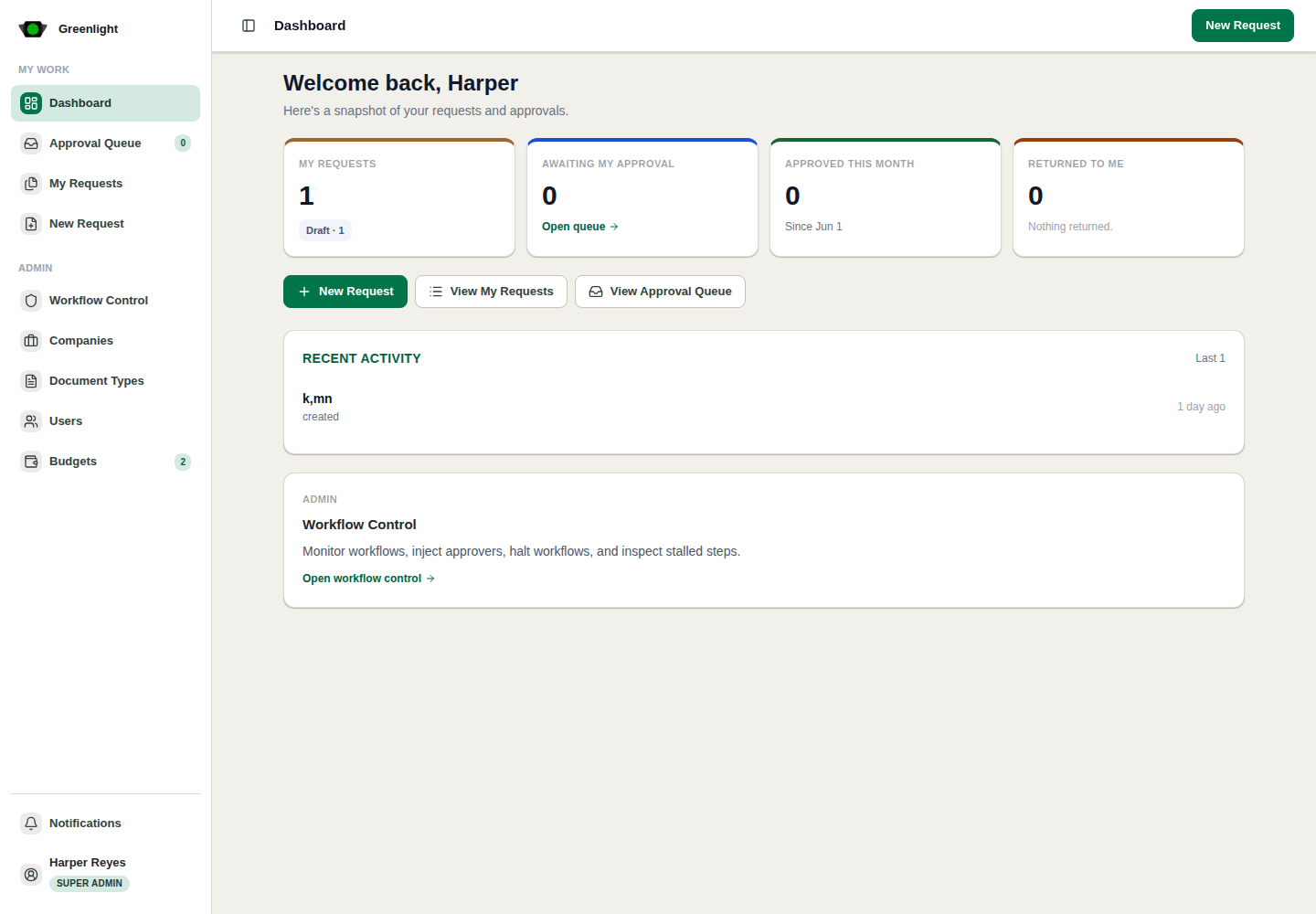
- 1 Administrators build the organization first: companies, departments, then people.
- 2 Invited people set themselves up and wait for an administrator to verify them.
- 3 Administrators shape the papers: proposal templates, signatory ladders, forms and page layout.
- 4 Requesters create proposals; approvers act on them; budget papers draw on the approved budget.
- 5 Everyone keeps up through notifications, the generation queue, and their own account settings.
In order
The sequence, step by step
-
DTT Admin Super Admin
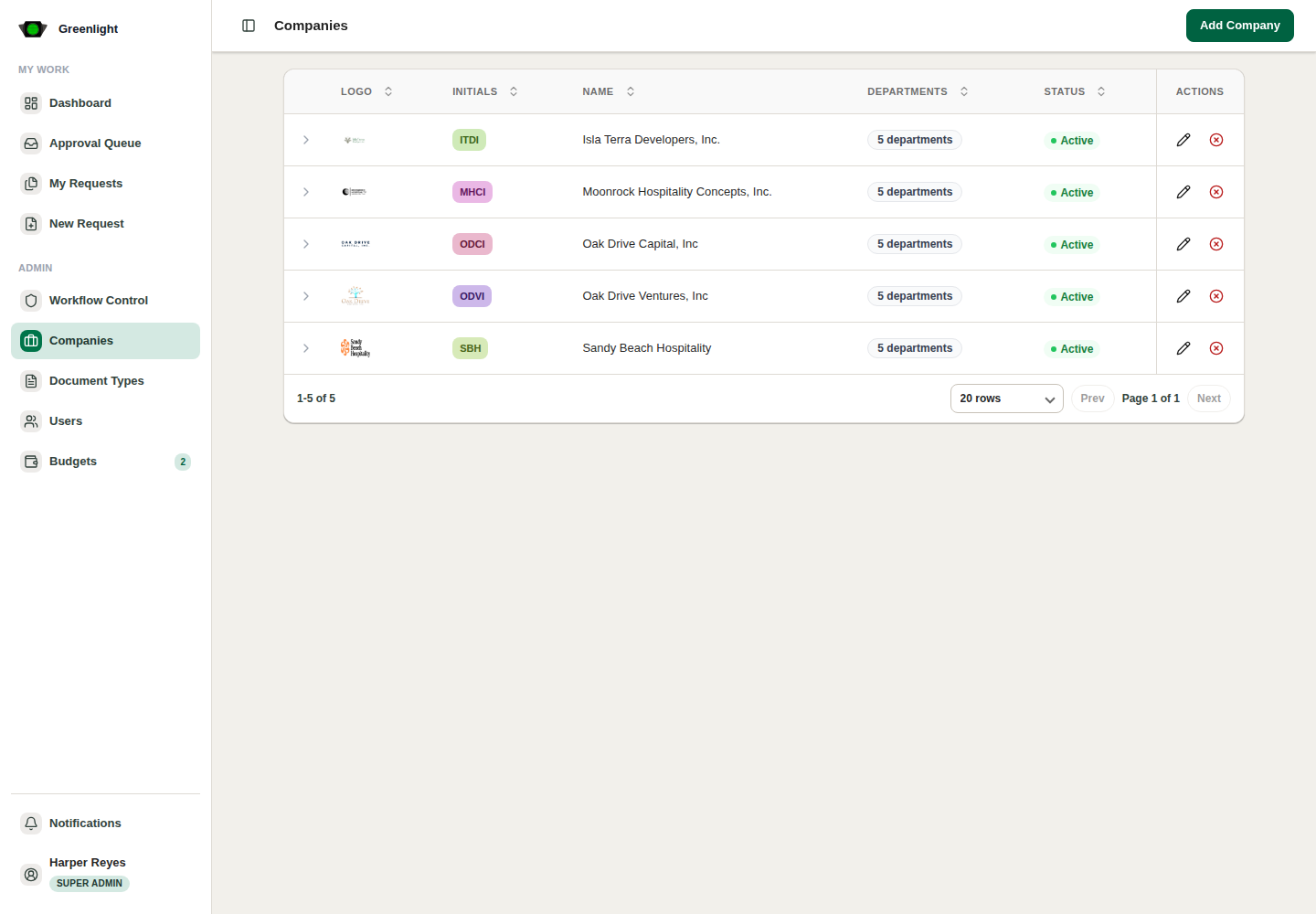
Create companies and departments
Open Admin › Companies, press Add Company, then expand the company row to add its departments. Users, templates, proposals and budgets all hang off a company, so this comes first.
-
DTT Admin Super Admin Company Admin
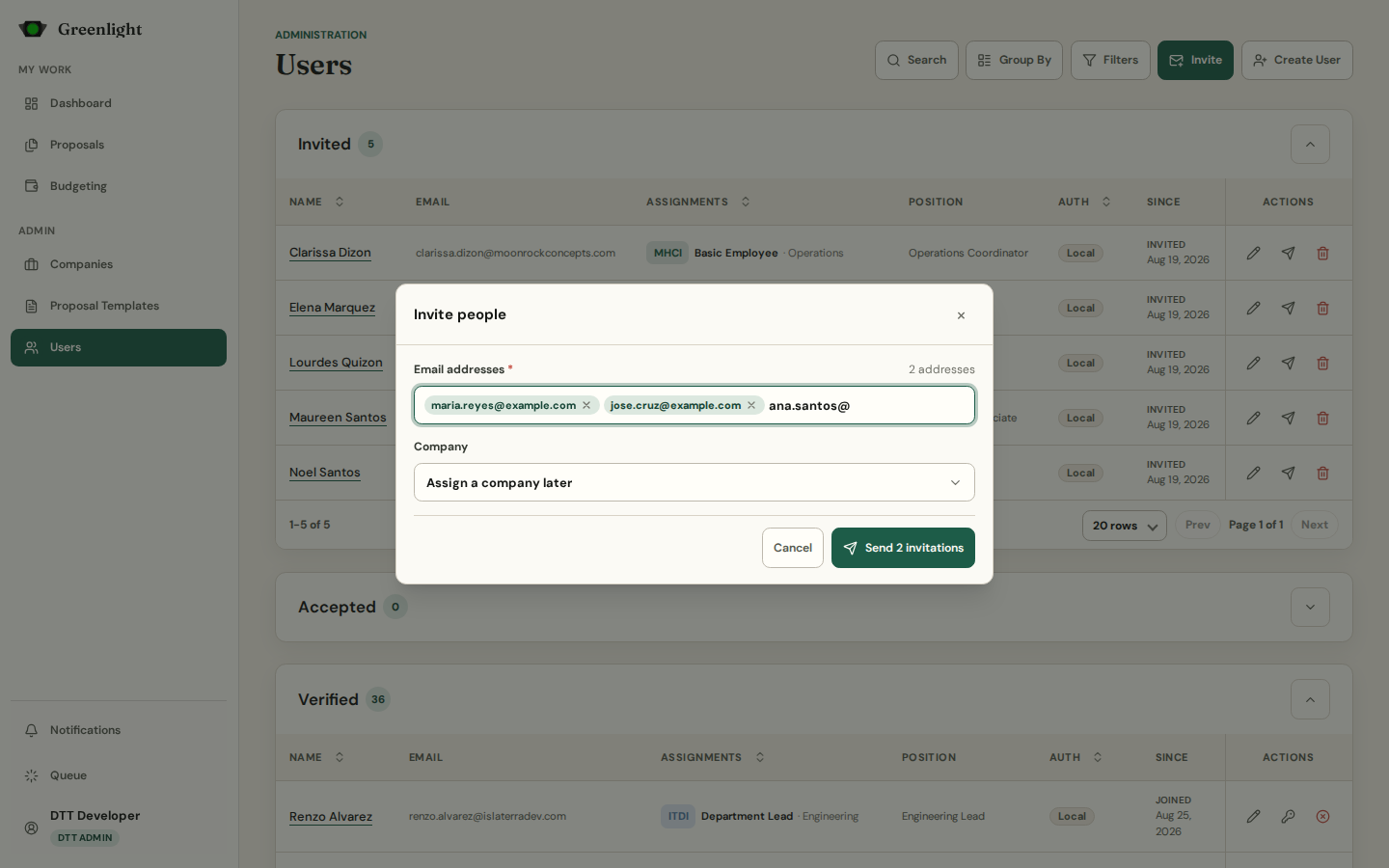
Invite the people
Open Admin › Users and press Invite. Type one or many email addresses — each becomes a chip — pick the company and send. Invitations land in the Invited lane; a DTT Admin can also use Create User for a fully specified account.
-
Invitee
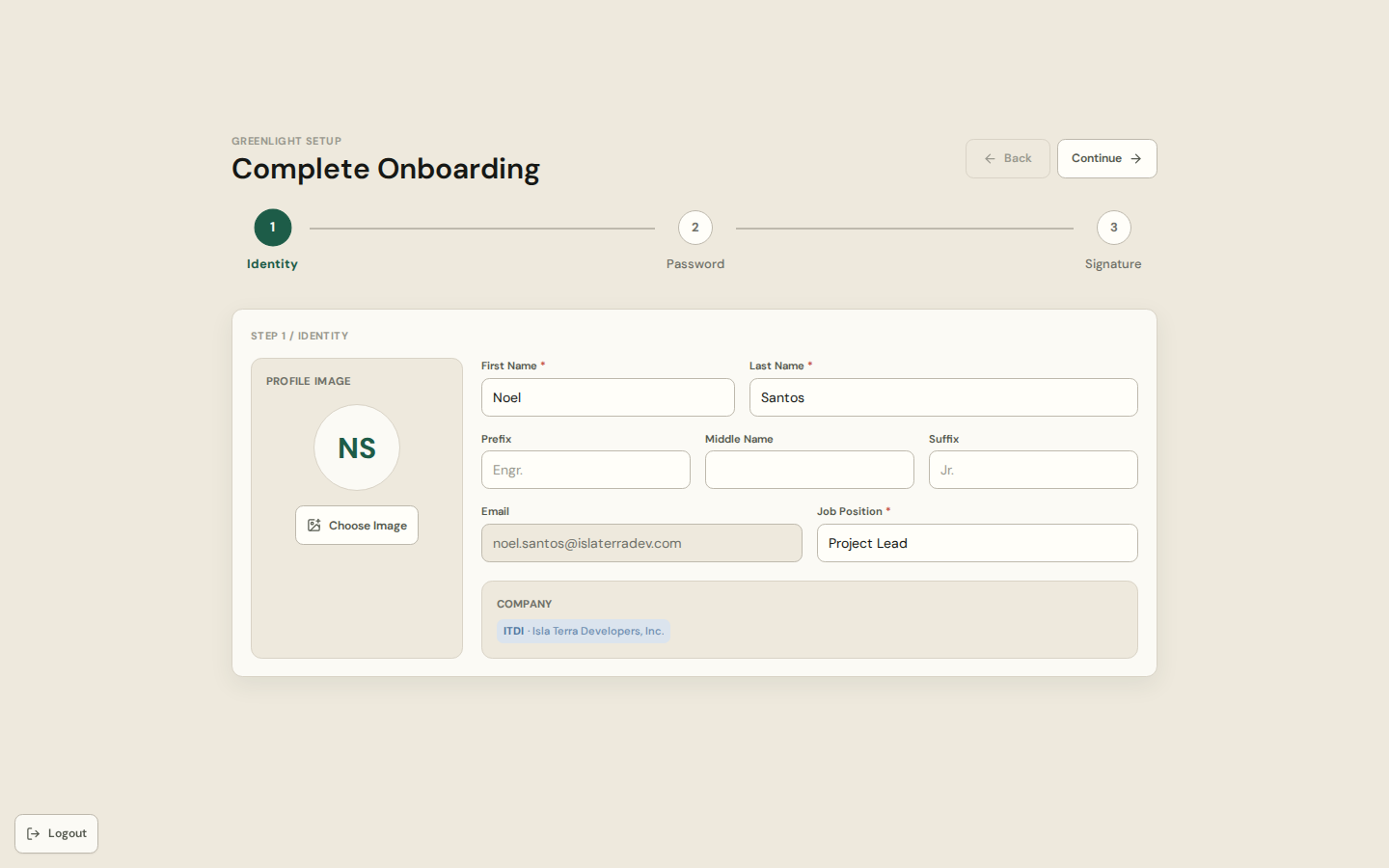
Accept the invite and set yourself up
The invitation email carries a link that signs you in and opens onboarding: Identity, Password, Signature. When you finish you land on the account setup page and wait — an administrator still has to confirm your role.
-
DTT Admin Super Admin Company Admin
Verify accounts and assign roles
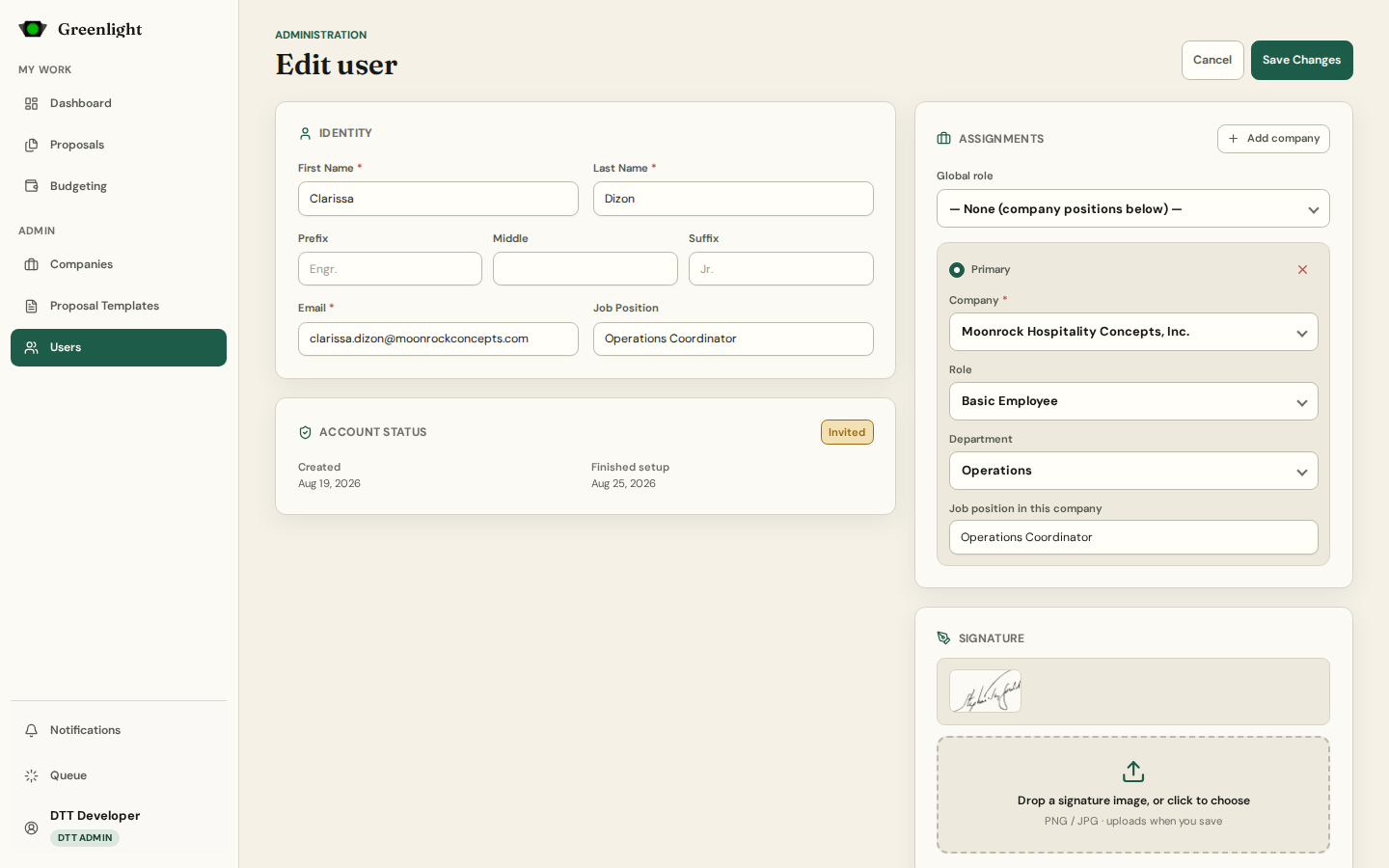
Accounts that finished onboarding move to the Accepted lane. Open Edit user, add the company assignment with a role and department (a person can belong to several companies), then press Verify. Only verified accounts see the workspace.
-
DTT Admin Super Admin Company Admin
Configure proposal templates and papers
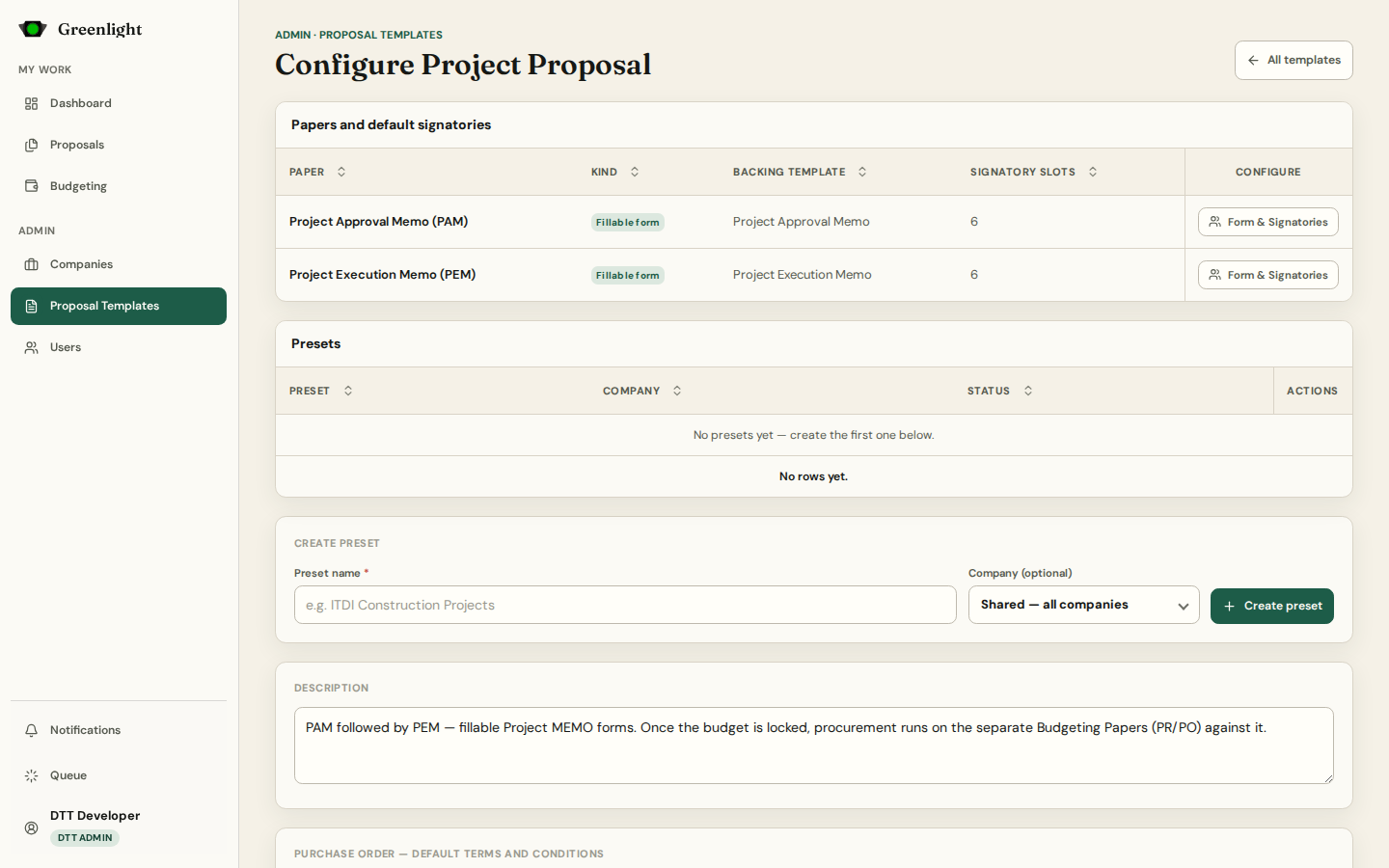
Open Admin › Proposal Templates. Configure sets the default signatories of every paper in the chain and the presets a company can start from. Form & Signatories opens the paper itself: Details, Form Builder, and the Template editor with page view and rulers.
-
Requester
Create a proposal
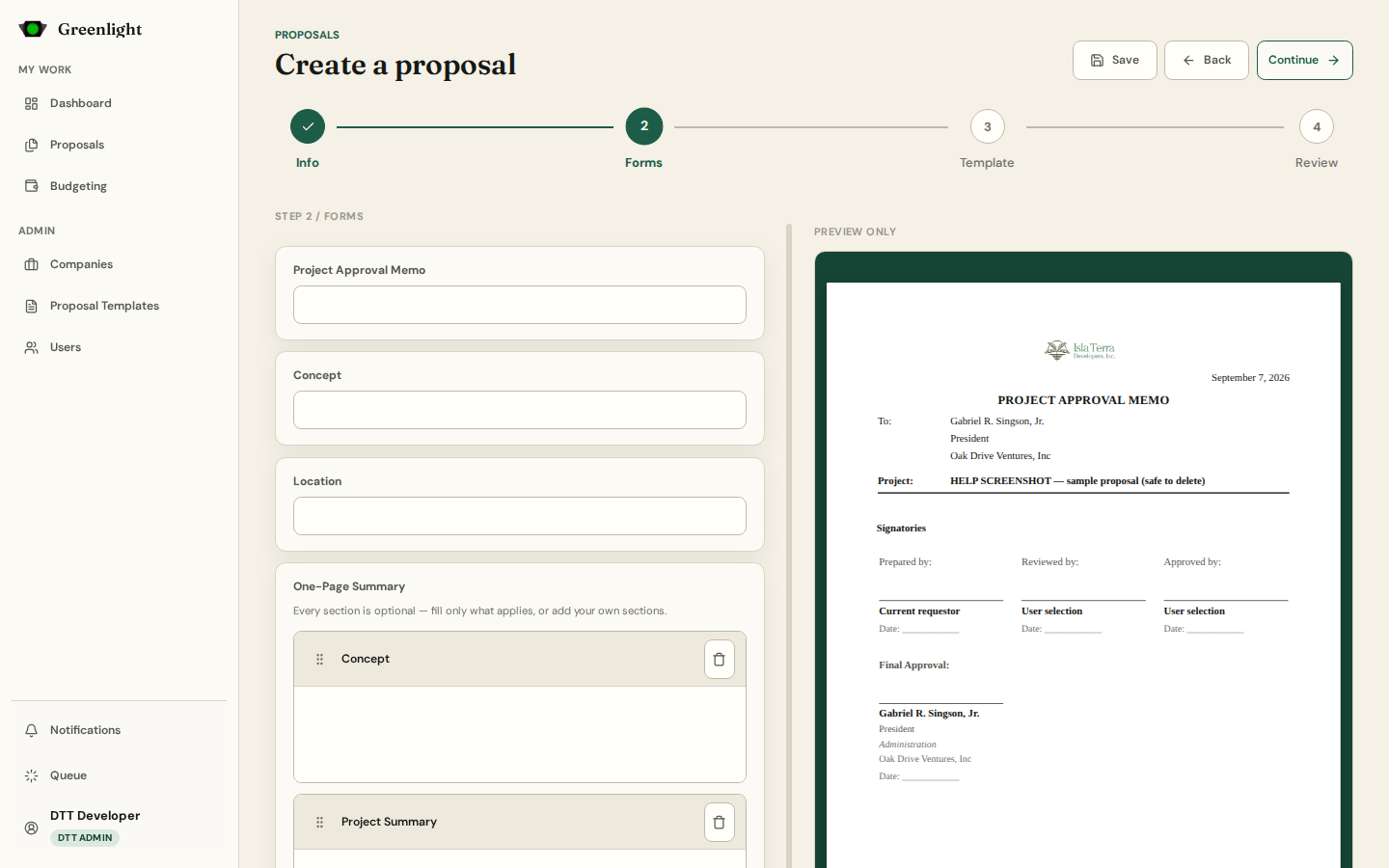
Press New Proposal. Step 1 Info asks for the proposal template first, then the rest; Step 2 Forms fills the paper and autosaves a draft whose address you can reload or share. Review, press Create Draft, then Submit from the paper page.
-
Approver
Review and approve
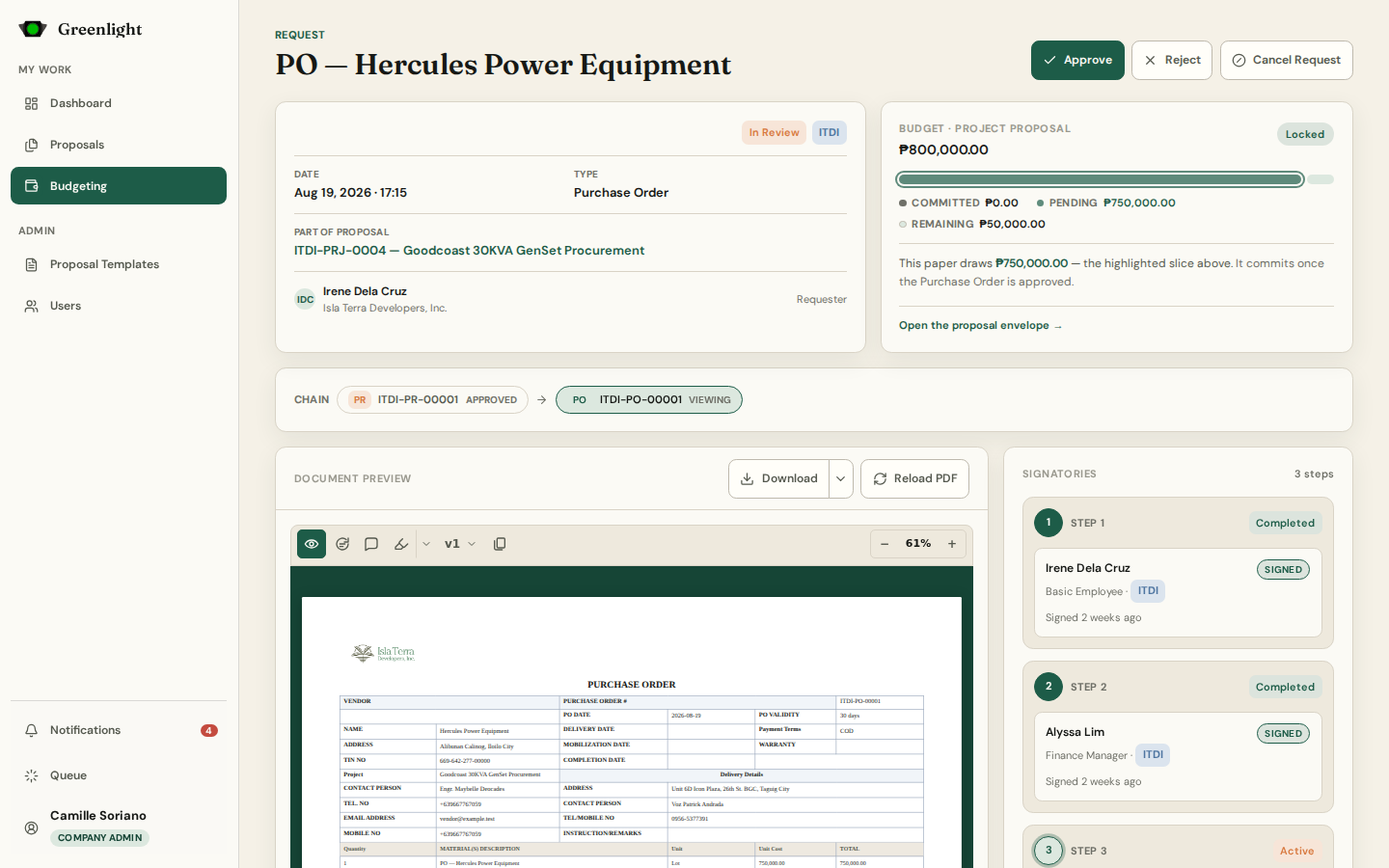
Papers waiting for you sit under For Approval on the Dashboard and the Proposals workspace. Open the paper, read the document, annotate or chat if something is off, then Approve, request a revision, or Reject. The requester revises and resubmits from the same record.
-
Requester Approver
Spend against the approved budget
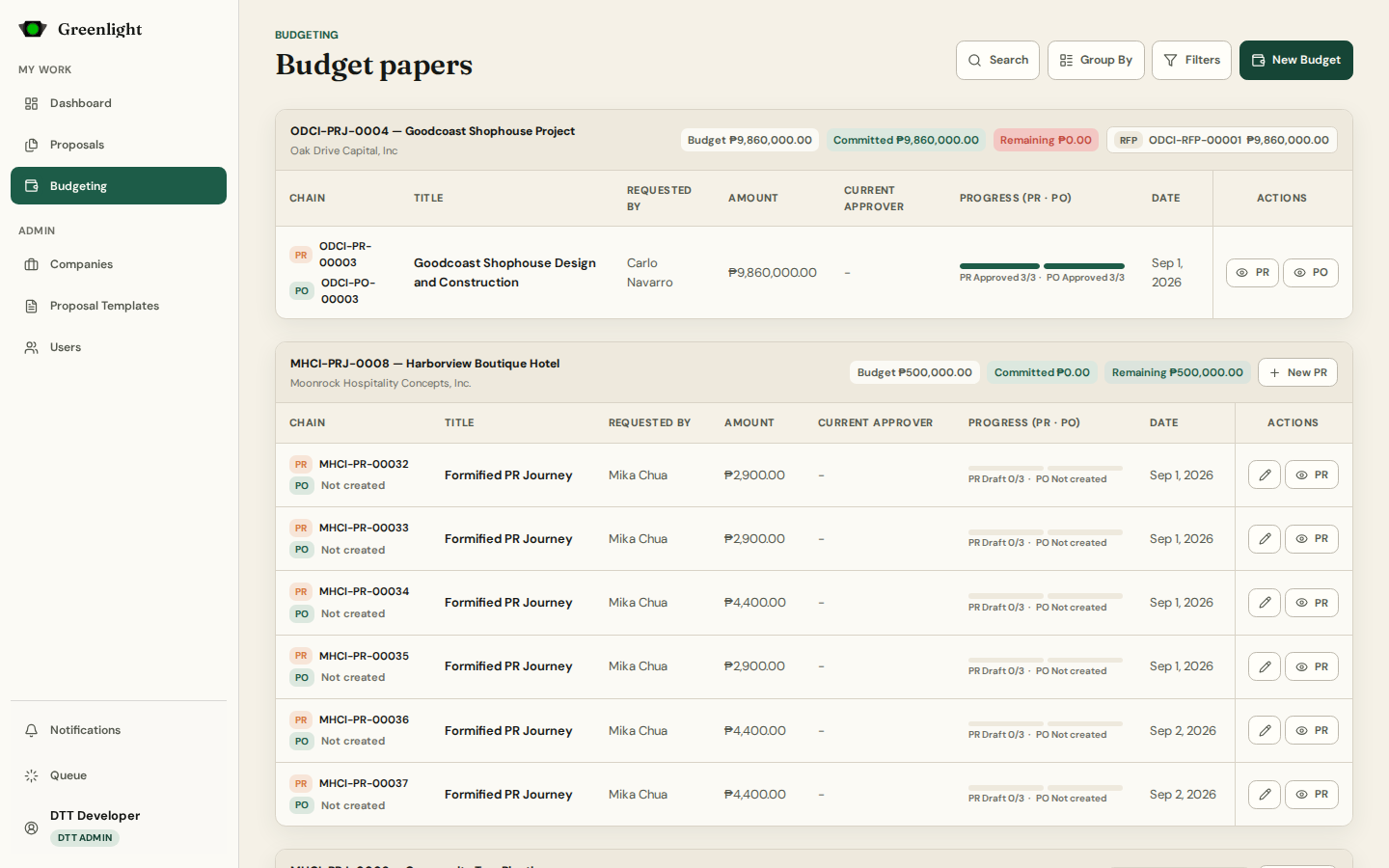
Once the proposal budget is locked, Budgeting holds the procurement papers: a Purchase Request asks, a Purchase Order commits, and the Request for Payment compiles itself when the PO is approved. Remaining balance drops once per approved PO.
-
Requester Approver
Get the signed PDF
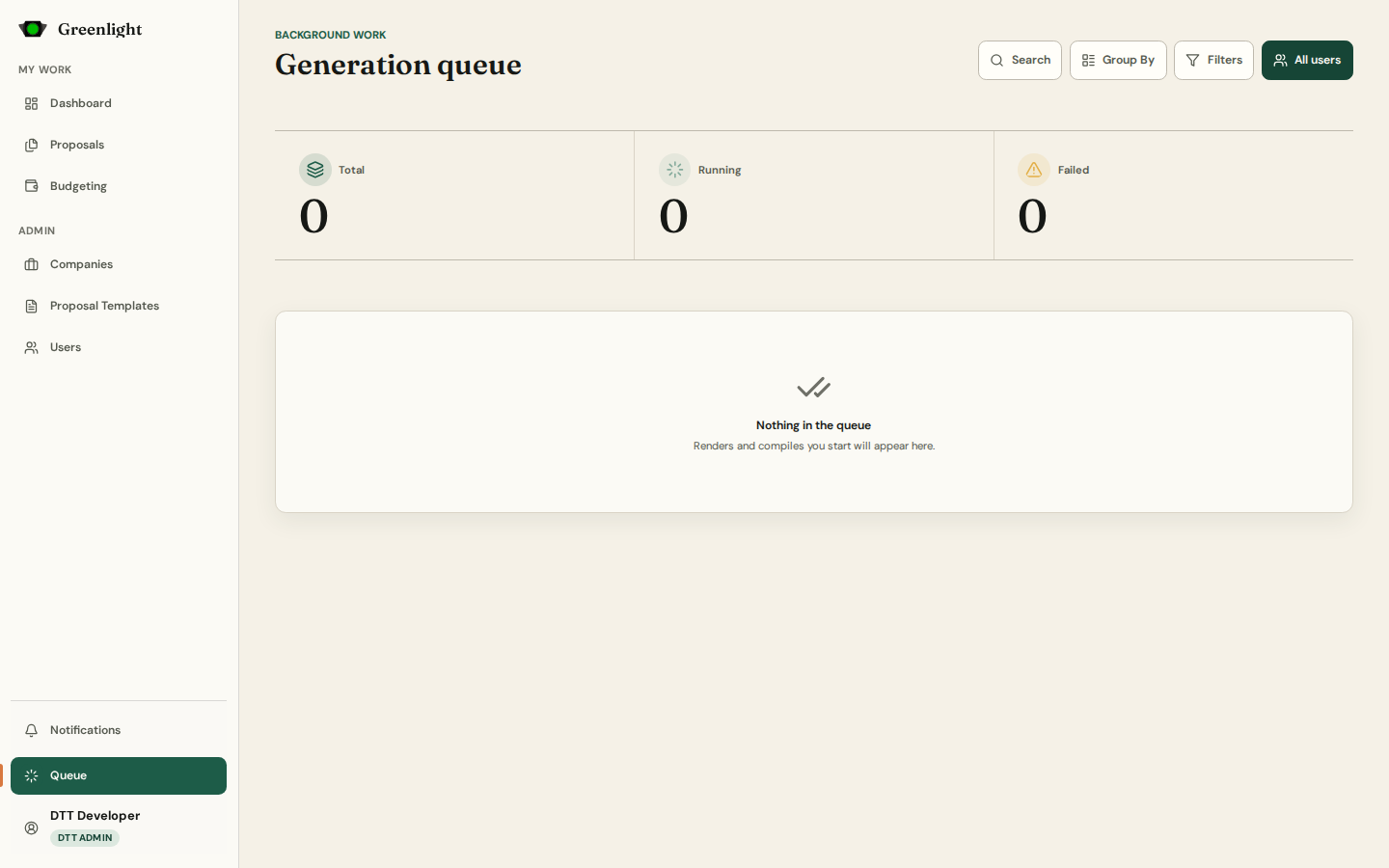
Open PDF and Download on the paper page serve the current render — base while the chain is running, signed once it completes. Renders run in the background; the Queue page shows what is running, failed, or done, and lets you retry.
-
Everyone DTT Admin
Keep up and tune the system
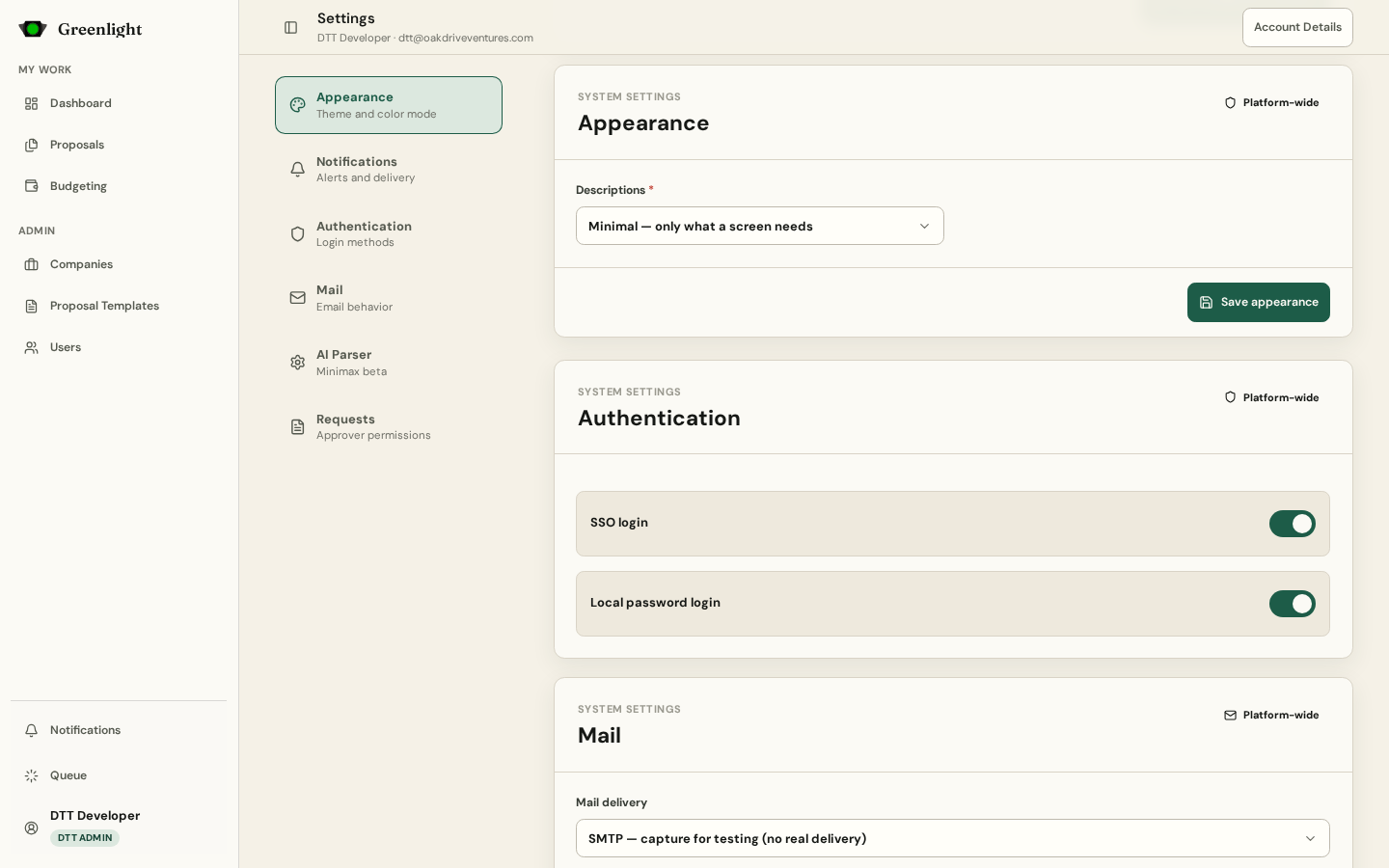
Notifications collect every workflow event; Account holds your signature, password and the company you work as; Settings holds theme and alerts. A DTT Admin also sets how much the interface explains itself (Descriptions: minimal, standard, full), login methods, and mail delivery.
Who is who
- DTT Admin is the developer super role: every company, every setting, the only role that can Create User directly.
- Super Admin sees every company; Company Admin administers the companies they are assigned to.
- Requester is any verified person who starts a proposal; Approver is anyone named on a paper's signatory ladder.
What blocks what
- No company, no invitations: the invite dialog needs a company to assign (a DTT Admin may assign it later).
- An unverified account only sees Account setup and Account details in the sidebar.
- A proposal cannot leave Step 1 without a template; the template locks once you leave Info.
- Budget papers need an approved proposal whose budget is locked, otherwise Remaining reads Unbudgeted.