How to use this page
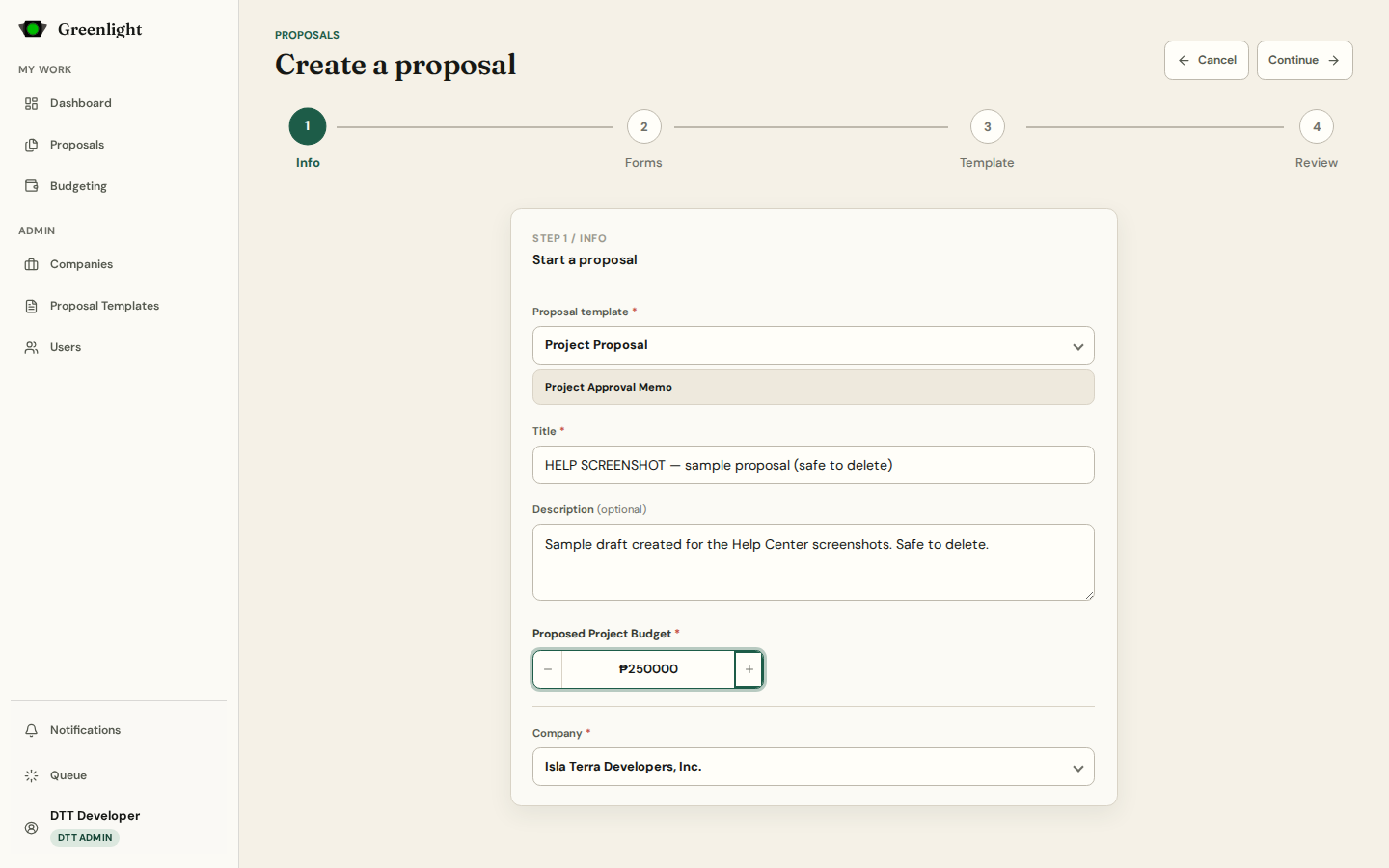
- 1 Step 1 Info asks one question first — the proposal template (Project Proposal or Activity Proposal) — then the rest: title, company, description and, where the template asks, the budget.
- 2 Continue mints the draft. The URL becomes /proposals/create/<draft> so a reload, a new tab, or a shared link lands on the same draft.
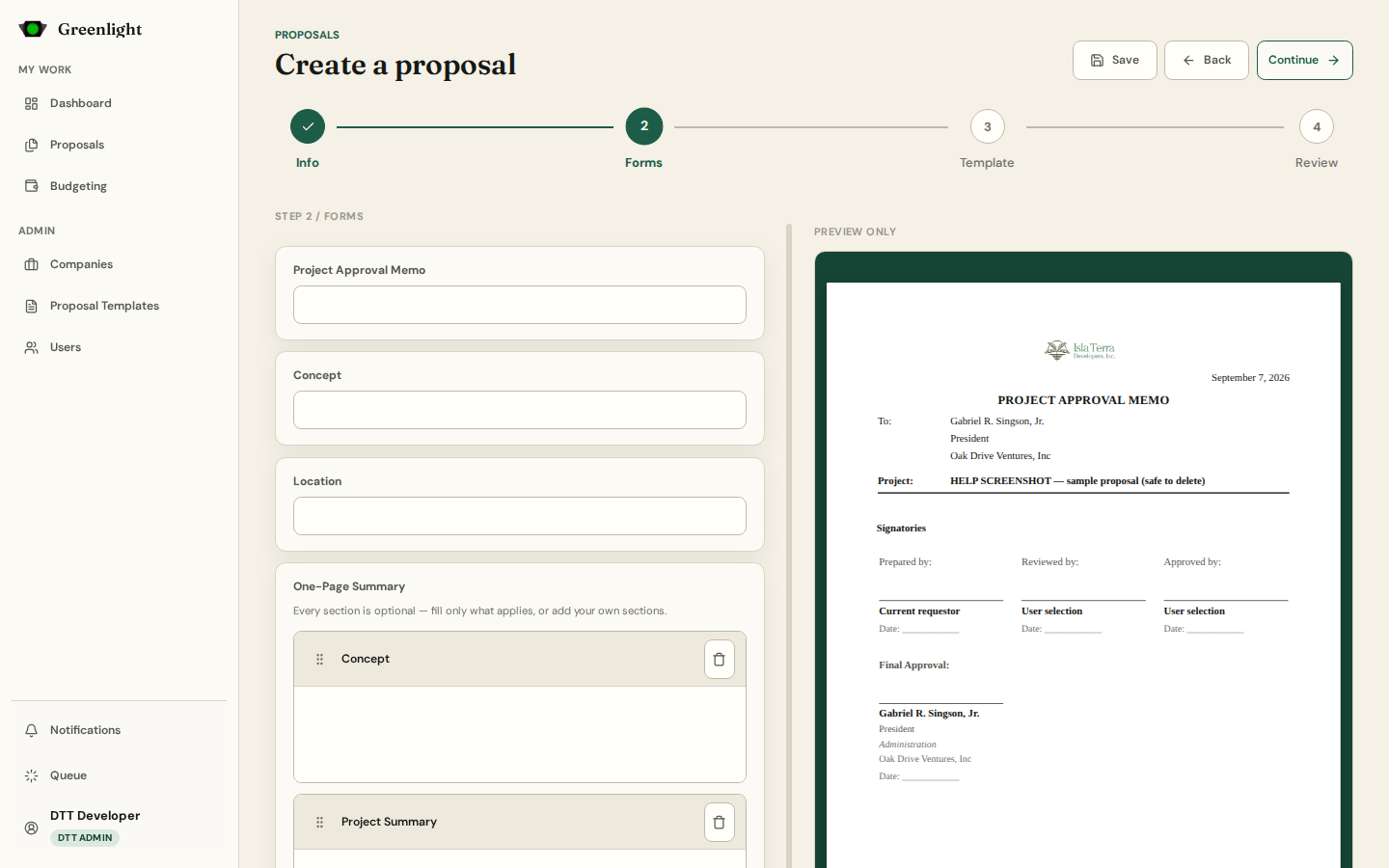
- 3 Step 2 Forms is the paper itself: rich text, dates, amounts, tables, uploads and the Budget Breakdown. Everything autosaves; the Save button confirms the last change landed.
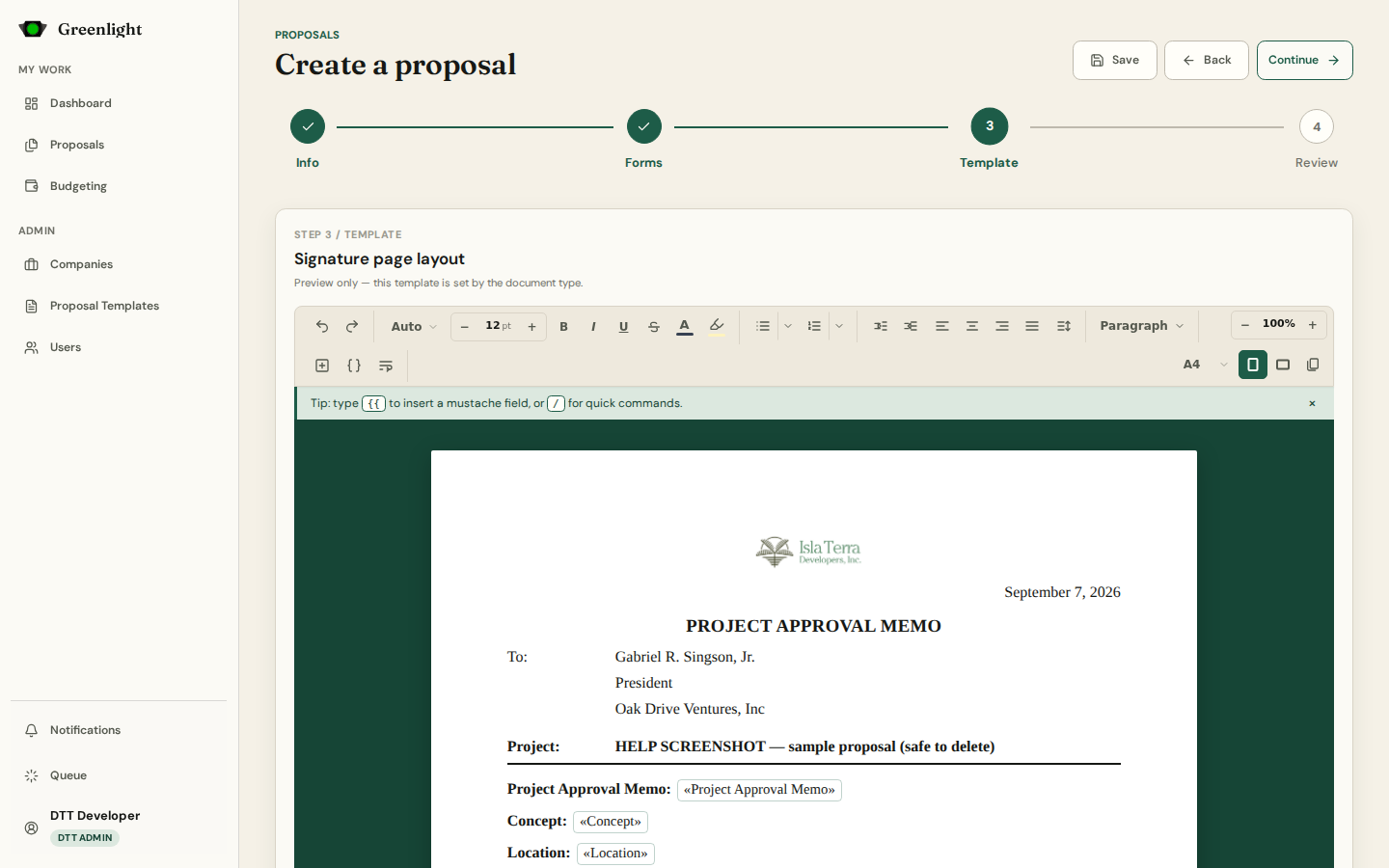
- 4 Step 3 Template is a preview only: the page layout comes from the paper's document type, shown with your values in place and the signature blocks the chain will sign.
- 5 Step 4 Review summarizes the paper and lets you save a customized signatory set as your own template for this paper. Create Draft closes the wizard; Submit on the paper page sends it into the chain.
- 6 Cancel discards the draft. Closing the tab does not — it stays in Requested as a Draft.
What the template decides
- Project Proposal runs PAM (Project Approval Memo) then PEM (Project Execution Memo); PEM approval locks the budget.
- Activity Proposal is one form-based paper; a filled Budget Breakdown becomes its budget.
- The template locks once you leave Info; start a new proposal to change it.
Editing later
- A Draft reopens in the same wizard from Requested › Edit.
- A Returned paper reopens with Revise on its page; the chain restarts and the version number bumps.
- The PEM starts from the approved PAM: open the proposal and press Start Project Execution Memo.
Screenshots
Page states