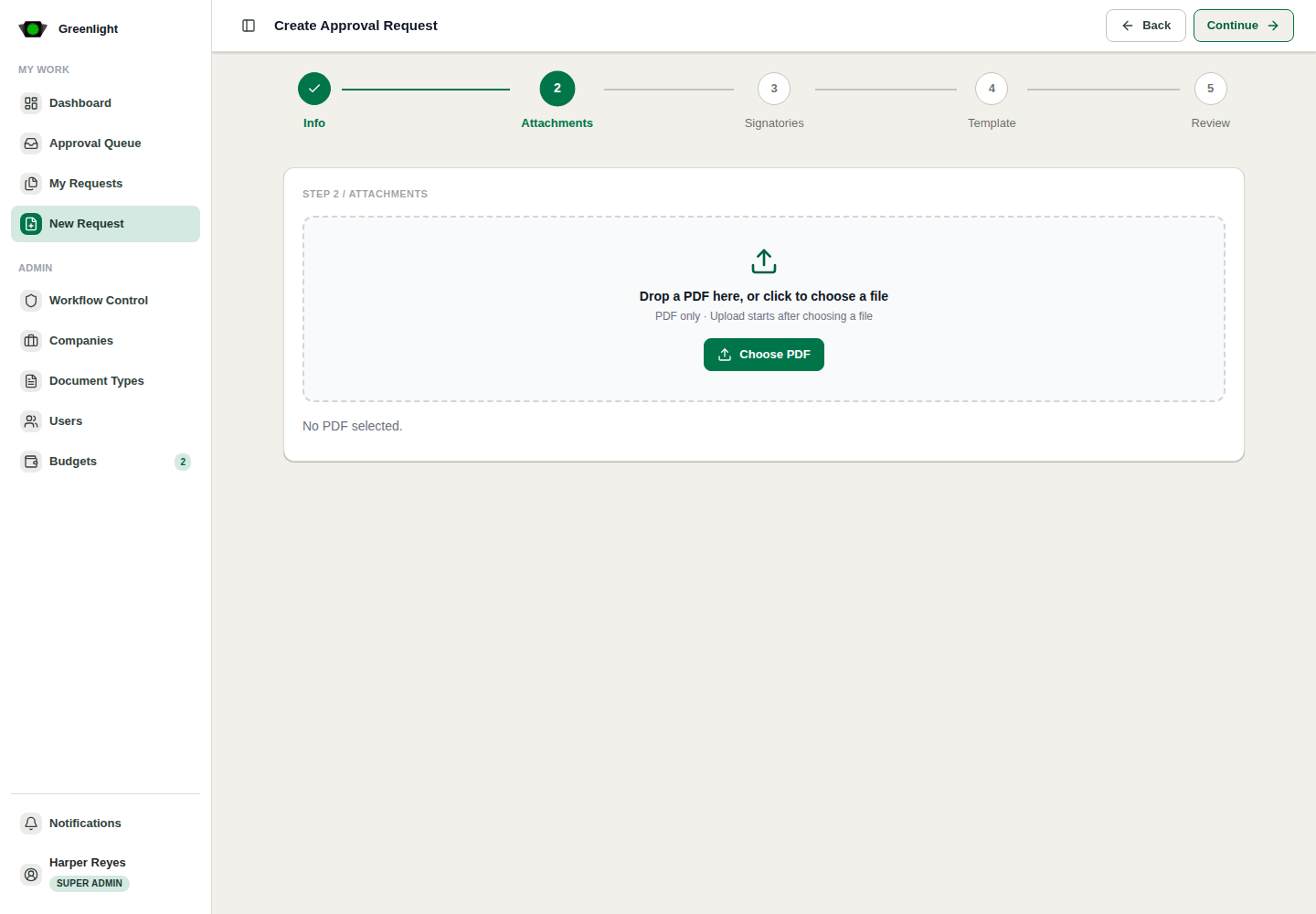
How to use this page
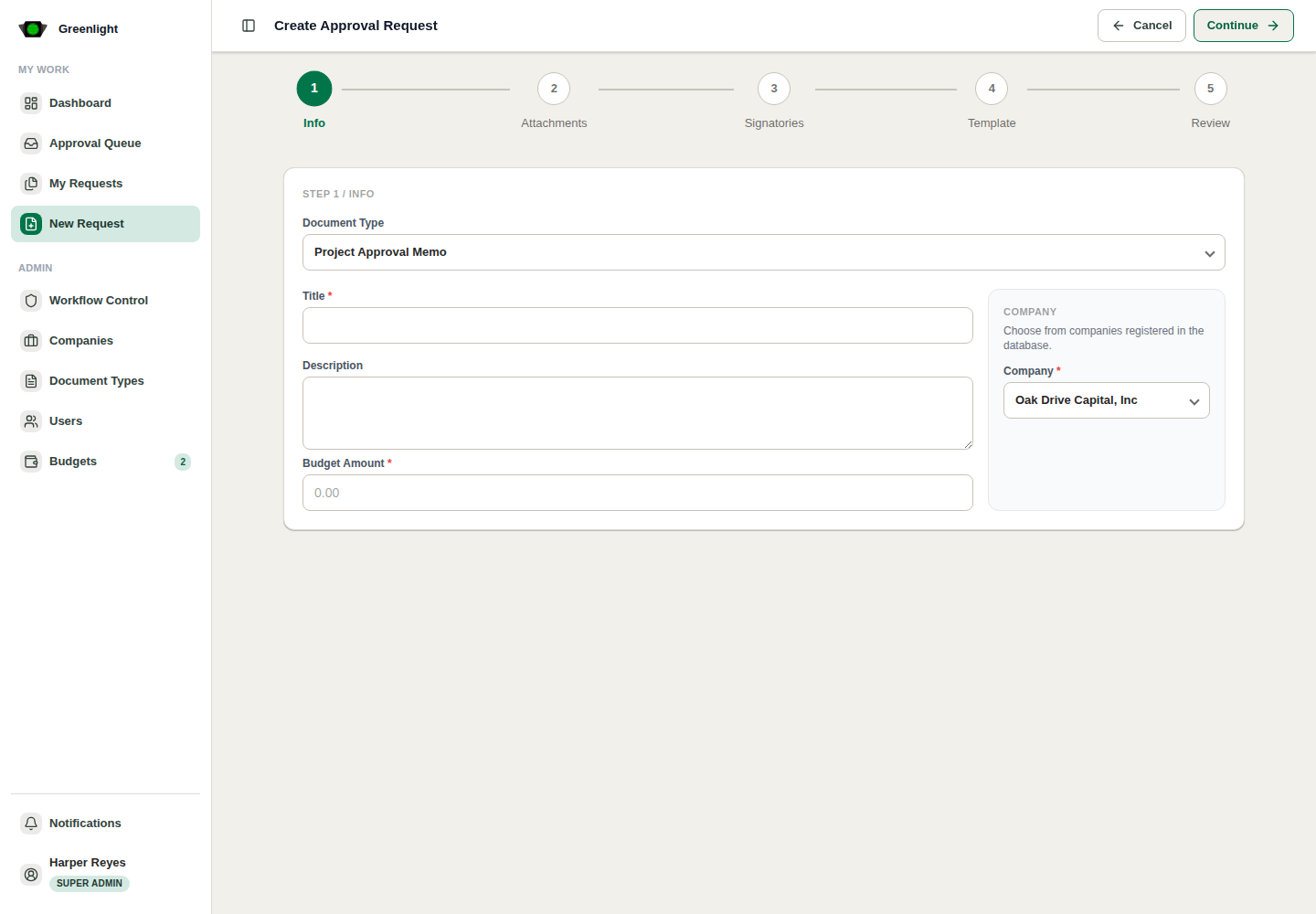
- 1 Choose a PDF Document template such as Project Approval Memo.
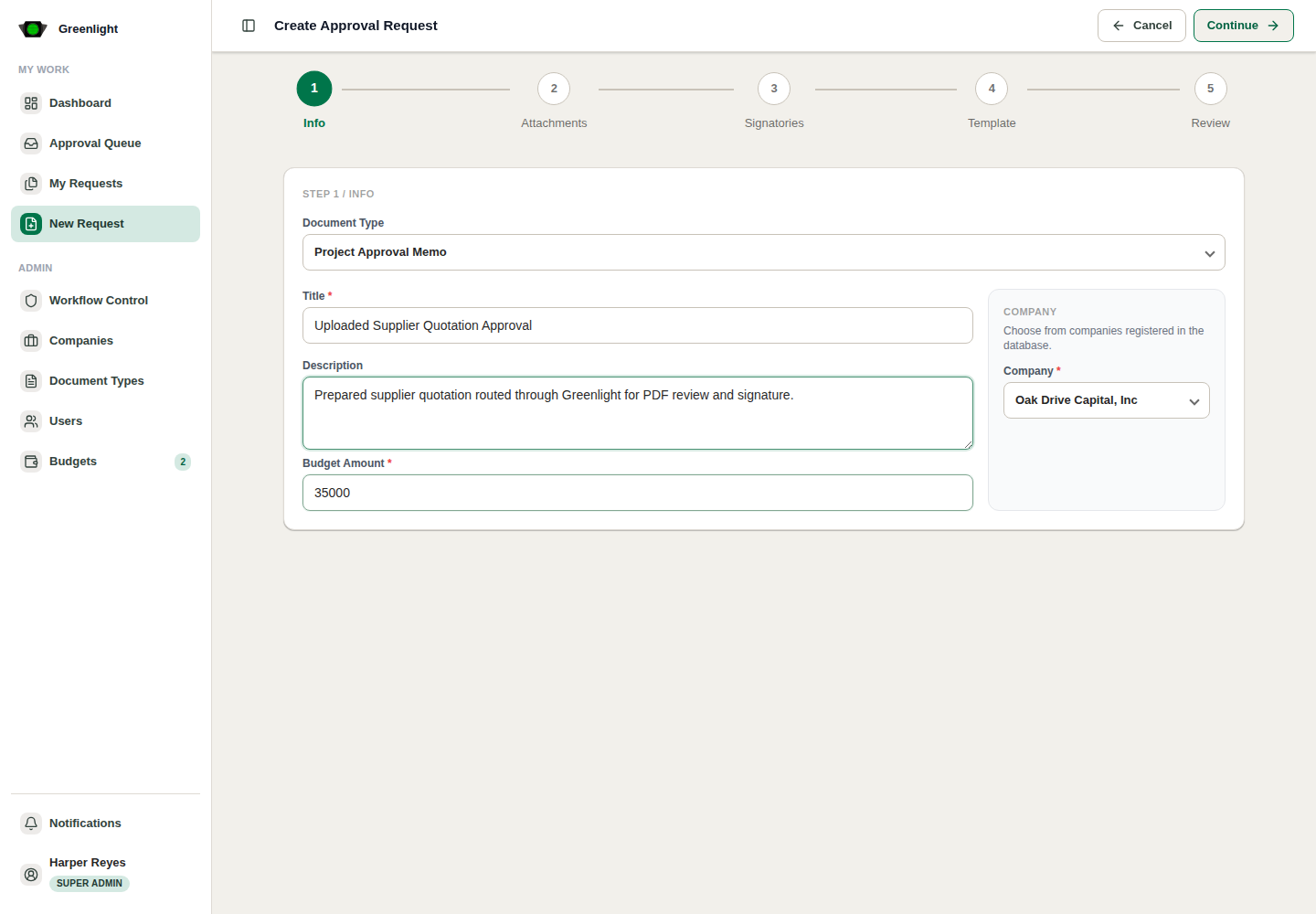
- 2 Fill request details and budget fields.
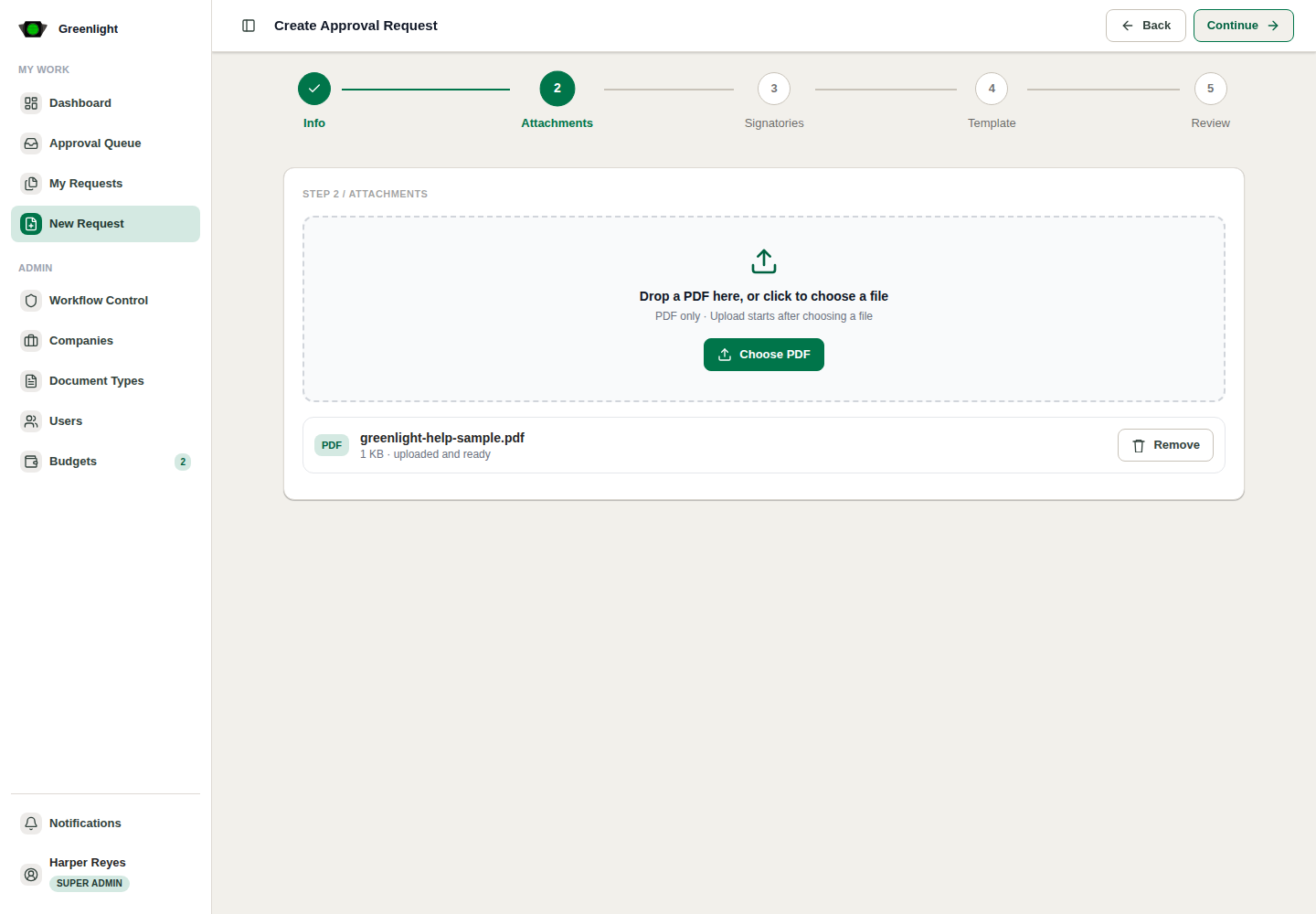
- 3 Upload the prepared PDF and wait for the ready state.
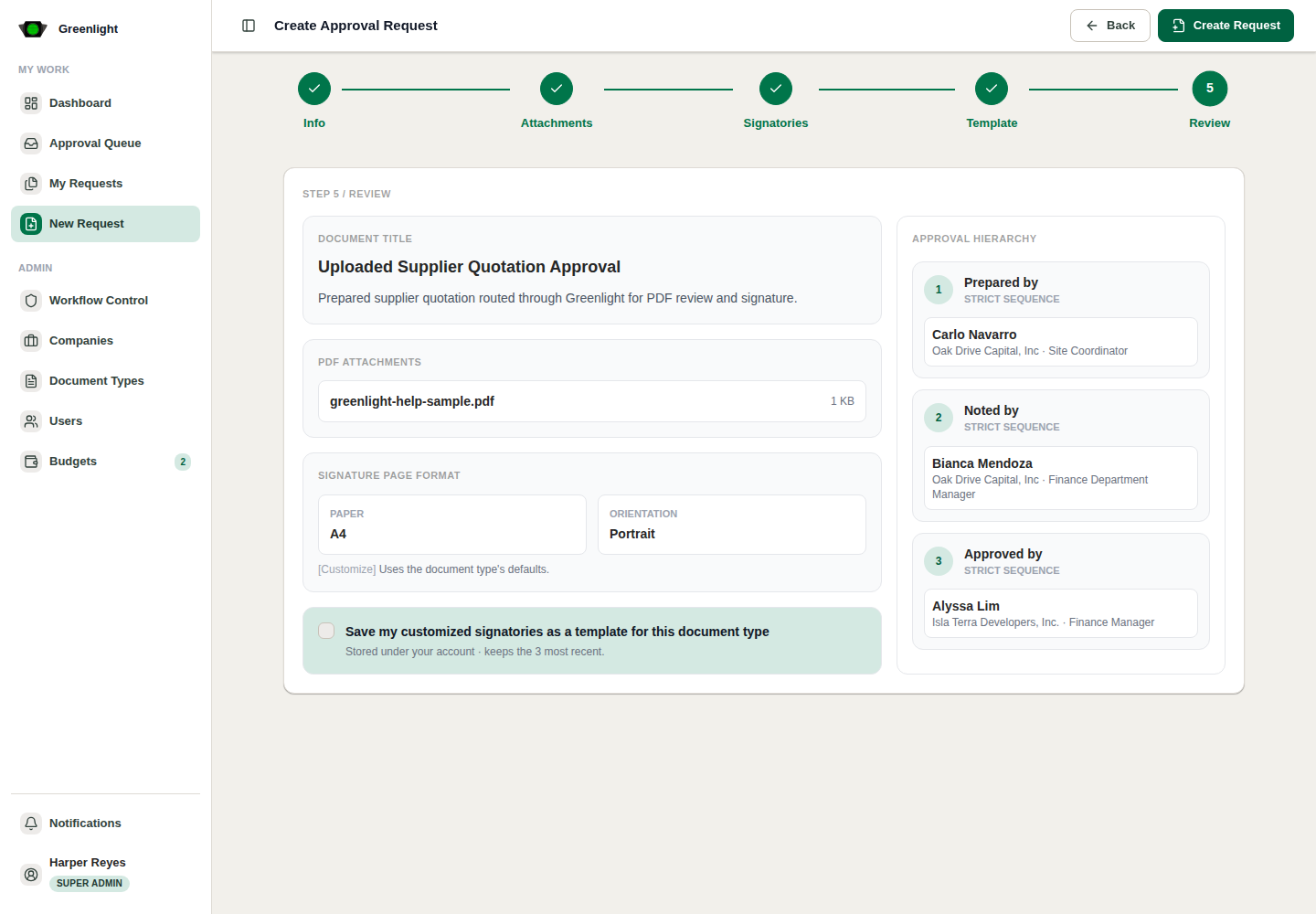
- 4 Assign signatories according to the template levels.
- 5 Review the PDF approval summary before submission.
Use this for
- Supplier quotations, permits, vendor proposals, scanned forms, and other prepared PDF files.
- Documents where Greenlight should route, annotate, sign, and audit the file rather than generate the main body.
Screenshots
Page states and tabs